COMMISSIONER GUIDE
How GolfCommish Works
Everything you need to run your group — from first-time setup through sending post-round results. Use the links below to jump to any section. Running an indoor simulator league? See the Indoor League Commissioner Guide.
1 First-Time Setup
Your Dashboard shows a Getting Started checklist with four steps. Complete them in order or in any sequence you prefer:
- Add your home course (with tees and a tee time template)
- Add or import your members
- Schedule a playing day and send an availability request
- Build groupings and send the pre-round email
Once all four steps are complete, the checklist disappears and the dashboard switches to showing upcoming playing days and group stats.
Quick Actions in the dashboard sidebar let you jump straight to Add Member, Schedule Playing Day, or Send Group Email from anywhere.
2 Managing Members
Go to Members in the top nav.
Adding Members
One at a time: Click Add Member, enter name, email, phone (optional), and GHIN number (optional). An invitation email goes out immediately.
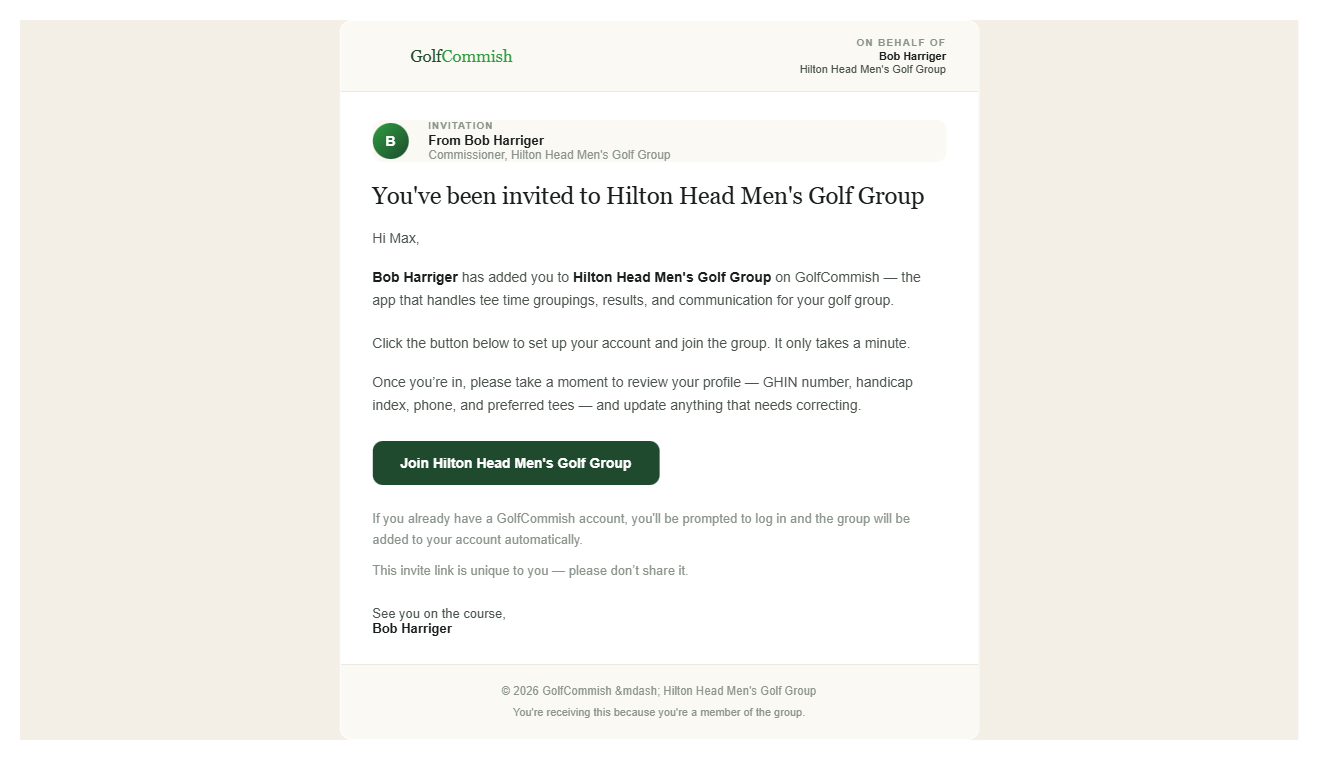
CSV import: Click Import from CSV and download the template. Fill in one row per member (first name, last name, email, optional phone and GHIN). Upload the file — the app imports valid rows, queues invitation emails and GHIN syncs, and reports any skipped rows.
Member Status
| Status | Meaning |
|---|---|
| Active | Accepted invitation; participates in playing days |
| Pending | Invited but hasn't accepted yet |
| Inactive | Deactivated — excluded from availability requests and groupings |
To permanently remove a member, use Remove from Group on their edit page. Their historical data (groupings, results, availability) is preserved but they no longer appear in the member list.
GHIN & Handicaps
When you save a member with a GHIN number, the app fetches their handicap index from GHIN automatically. Use the Refresh Handicaps button on the Dashboard to re-sync all members at once.
If a member's last name doesn't match their GHIN record, a mismatch warning appears. Open their edit page and click Save & Re-sync after correcting the last name or GHIN number.
Use a handicap override to manually set a fixed index for members who don't use GHIN or for occasional guests.
Away Periods
Set a date range on a member's edit page to mark them away. Away members are excluded from first-send availability requests and shown in a separate "Away" section on the playing day page. Members can also set their own away period in their profile.
Co-Commissioners
You can grant one other member co-commissioner access from their edit form. Co-commissioners have access to all commissioner pages. Only one co-commissioner per group is allowed.
3 Courses & Tees
Go to Courses in the top nav.
Adding a Course
Click Add Course. Start typing the course name in the search field to look it up — selecting a result auto-populates the name and par. Set a Pro Shop Email if you want to email the tee sheet directly to the course. Mark it as the default course if it should be pre-selected when scheduling playing days.
Tees
Under each course, add one row per set of tees your group plays from. Each tee needs a name (e.g., "Blue," "White/Gold"), gender (Men/Women/Unisex), course rating, and slope rating. These values feed the course handicap formula used in groupings.
Course Handicap = Handicap Index × (Slope ÷ 113) + (Course Rating − Par)
Tee Time Template
Set the starting time, interval between groups, and number of available slots. The grouping builder uses this to generate time options for each group. If your group uses shotgun starts or non-standard times, toggle the course to Manual / Non-Standard Times — the builder will accept any time you type.
4 Games Library
Go to More → Games.
GolfCommish ships with a library of common golf formats (Best Ball, Stableford, Skins, and others). Click the star icon on any shared game to add it to your Favorites — favorites appear at the top of the game picker when scheduling playing days.
Click New Custom Game to create a format specific to your group. Enter the name, a short one-line description (used in emails), the full rules (shown to members in the app), and which group sizes the game supports.
5 Scheduling Playing Days
Go to Playing Days in the top nav.
Single Playing Day
Click + New Playing Day. Set the date, course, tee, game, entry fee, and any commissioner notes. The default course and default entry fee from Settings are pre-filled.
Bulk Schedule
Click Bulk Schedule to create a whole month at once. Pick the month, which days of the week to include (e.g., every Wednesday), any specific dates to skip, and the shared details (course, game, entry fee). The scheduler skips dates that already have a playing day and skips past dates.
Editing & Deleting
Click any playing day from the calendar to open it, then use Edit to change its details or Delete to remove it. The calendar shows three months at a time.
6 Collecting Availability
From any playing day's detail page, you see four sections: In, Out, Maybe, and No Reply.
Sending Requests
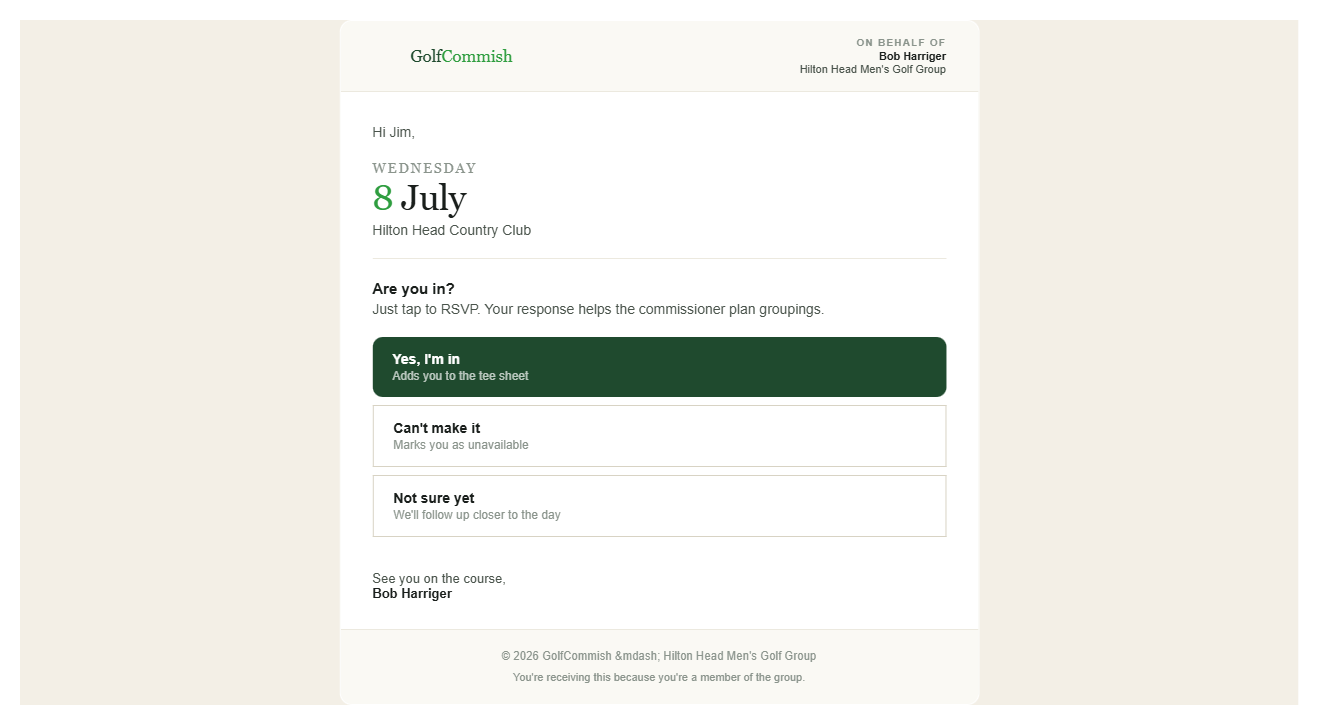
- Per-day: Click Send Availability Request on the playing day page. Goes to all active members not currently away. Each email has three one-click buttons — In, Out, Maybe.
- Monthly digest: On the Playing Days calendar, click Send Monthly Availability. Sends one email per member covering all unsent playing days in the month — a date-by-date list with buttons per date.
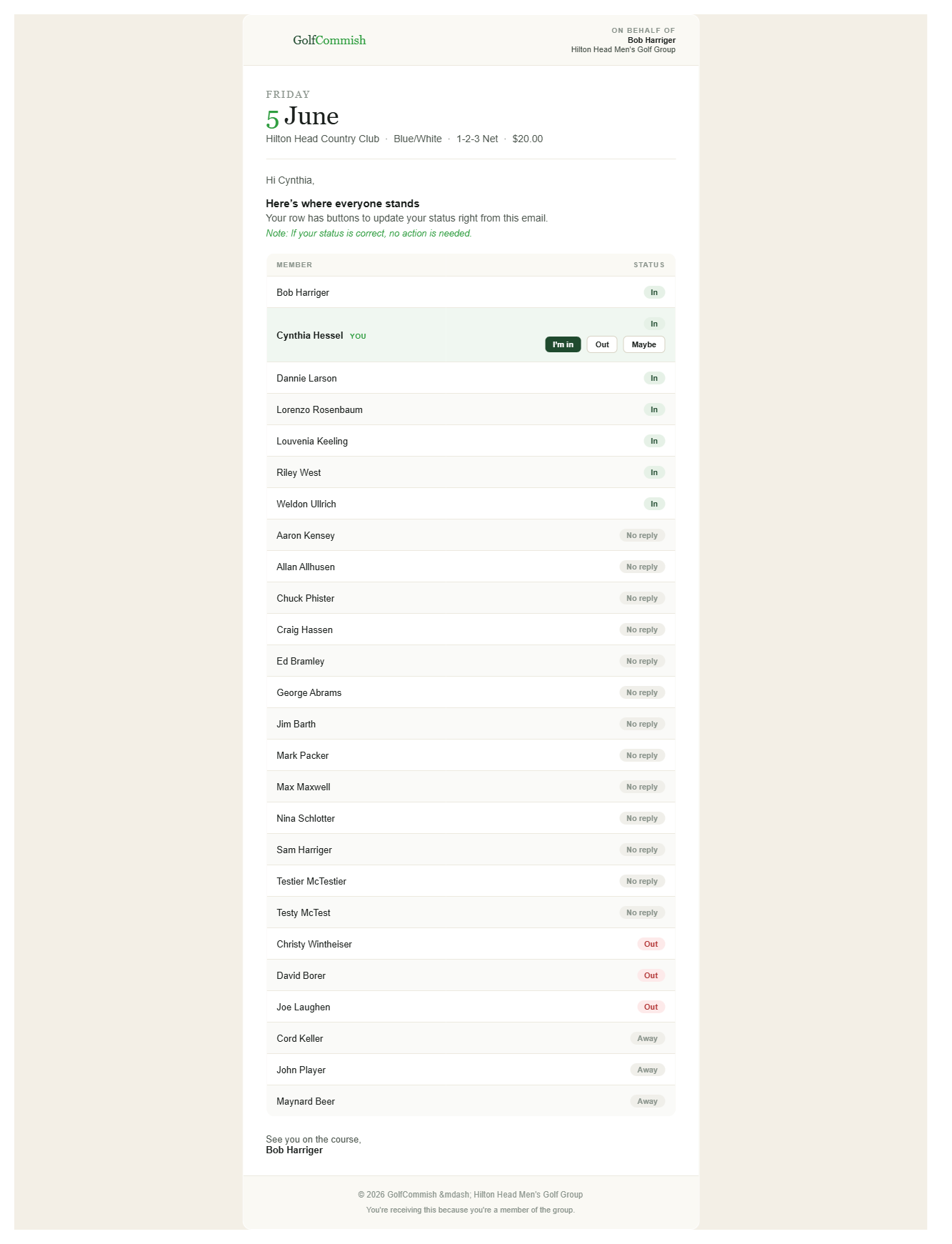
- Resend / Snapshot: After the first send, click Resend Availability to send a current-status snapshot to all active members. Useful as a reminder close to the play date. Resend to Non-Responders sends the same snapshot only to members who haven't replied or said Maybe (away members are skipped).
Overriding Availability
Use the dropdown next to any member's name on the playing day page to set their status manually — useful when a member calls you directly.
Email Previews
Every send button has a "What will this send?" link. Click it to see exactly who will receive the email and a rendered preview of the message body — before you commit to sending. This works for availability requests, snapshots, and pre-round emails.
7 Building Groupings
From a playing day's detail page, click Build Groupings. The builder pulls all members marked In and auto-suggests balanced groups.
Auto-Suggest Strategies
| Strategy | What it does |
|---|---|
| Balanced Groups | Mixed handicaps — each group has a similar combined index |
| Closest Handicaps | Players with similar handicaps are grouped together |
| Randomize | Random assignment |
Switch strategies using the dropdown — the suggestion updates immediately without saving.
Manual Adjustments
Drag players between groups or click to assign from the available pool. Each group shows the tee time (pick from the template or type manually), starting hole (for split or shotgun starts), and course handicaps. Groups must have 2–4 players.
Adding Guests
Use Add Guest on any group card. Enter the guest's name and optional handicap index — a course handicap is calculated automatically. Guests appear in groupings and on the pro shop sheet but don't need app accounts.
Save & Publish
- Save Draft — saves groupings without making them visible to members
- Publish — members can now see their tee time and playing partners in the app
- Unpublish — hides groupings again so you can make adjustments
Pro Shop Sheet
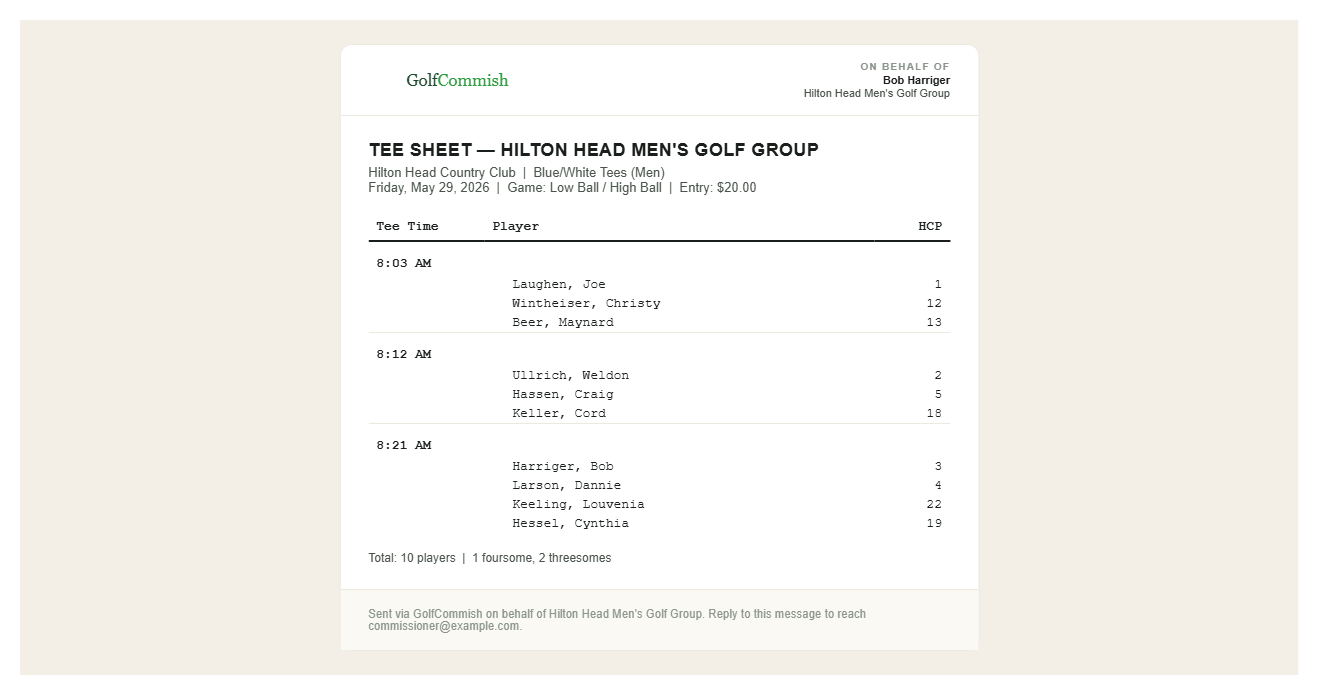
Click Pro Shop Sheet for a printable tee sheet. Click Email to Pro Shop to send it to the course's pro shop email (pre-filled from the course setup).
8 Email Communications
Navigate to Email in the top nav to see the log and compose ad-hoc messages. Want to see what each email looks like? View sample emails →
Pre-Round Email
From the playing day page, click Pre-Round Email. The form is pre-filled with groupings, tee times, game rules, entry fee, and commissioner notes. Edit the subject and body before sending. Goes to all players in the groupings.
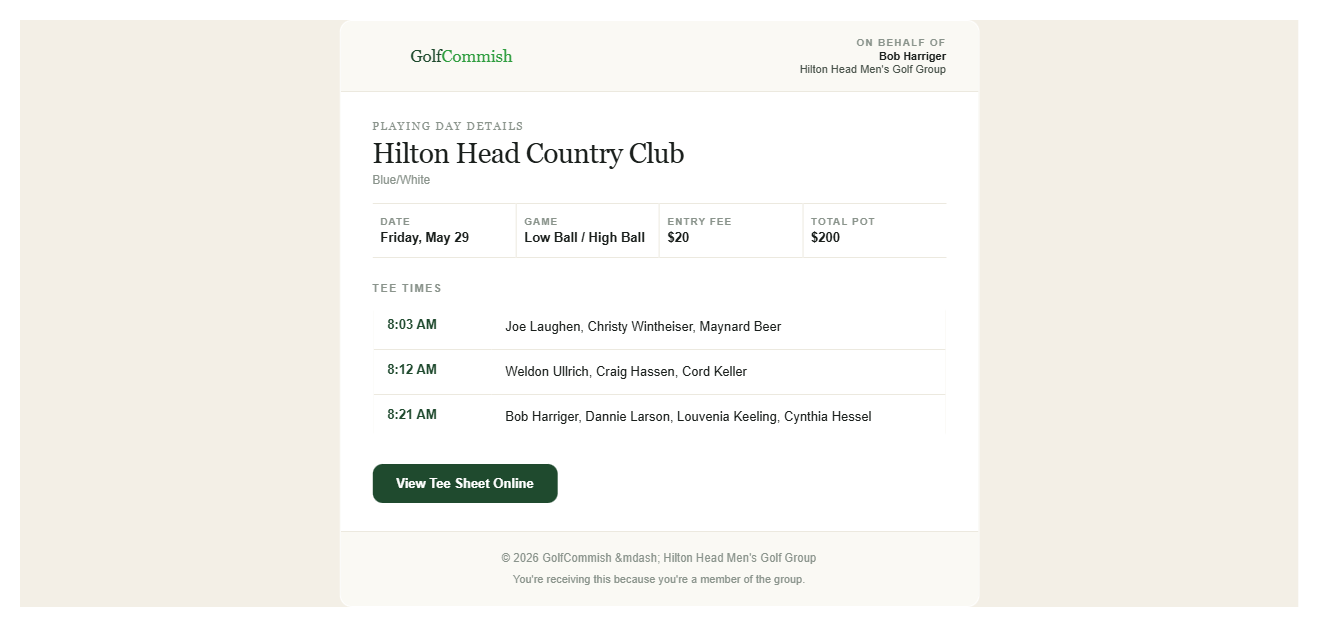
Playing Day Details Email
Also on the playing day page: Send Playing Day Details. One-click, no editing — sends the complete tee sheet to all grouped players. Add an optional short note before sending. Use this as the final morning-of communication.
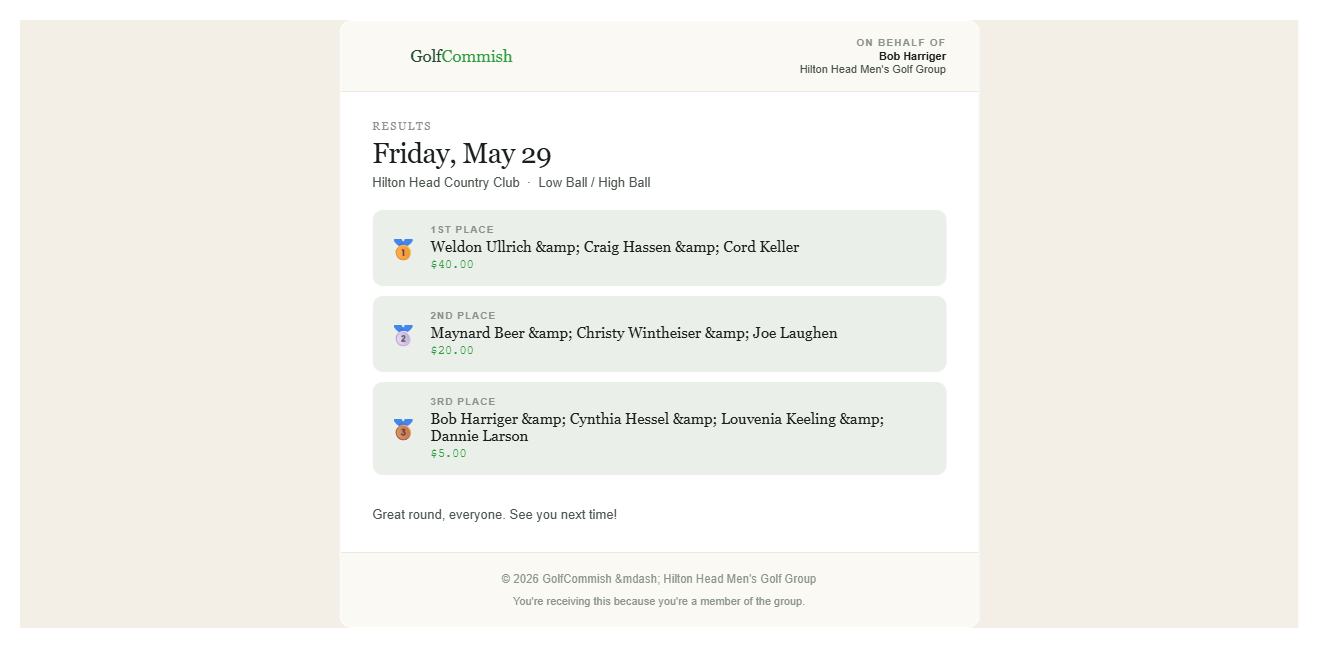
Post-Round Results Email
After entering results (see Section 9), click Send Results Email. Goes to all active members with place finishes and payouts.
Ad-Hoc Email
Go to Email → Compose. Choose the audience:
- All Members — every active member in the group
- Players on a Specific Date — only players in the groupings for a given day
- Specific Members — pick individuals from the member list
Write a subject and body, then send. All emails are logged.
Email Log
Go to Email → Log to see every email sent — type, subject, recipient count, date, and associated playing day.
9 Results & History
Entering Results
From a playing day page, click Enter Results. Add one row per award — label (e.g., "1st Place," "Low Net," "Skins"), the winning member(s) (supports team wins), and an optional payout amount. Click Save Results.
Results appear on the playing day detail page, each member's history, and the leaderboard automatically.
Leaderboard
Click Leaderboard in the top nav. Ranked by Wins, Rounds, or Winnings — use the year picker for prior seasons.
Archive
Paginated list of all past playing days with date, course, game, and results. Accessible from the Leaderboard page.
Playing History
Go to More → Playing History. Select any member to see their full playing record — every day they participated, wins, and winnings. Filter by game to see performance in a specific format.
10 Group Settings
Go to More → Settings.
- Group Name — shown throughout the app and in all emails
- Description — optional short description
- Logo — upload a logo (JPEG, PNG, WebP, GIF, max 2 MB)
- Default Course — pre-selected when scheduling new playing days
- Default Entry Fee — pre-filled on new playing day forms; can be overridden per day
Tips & Shortcuts
- The Dashboard banner tells you when a player dropped out of a published grouping — it links directly to the groupings builder so you can rebuild.
- Click "What will this send?" before any bulk email to preview the recipient list and message content.
- Members can set their own away period in their profile — you don't have to do it for them.
- A handicap override on a member's edit page lets you set a fixed index — useful for guests or members who don't use GHIN.
- Members can have a preferred tee per course — set on their edit page or in their own profile. The groupings builder uses this to calculate each player's course handicap.
Questions or feedback? Contact Us